Quven
Quven'%3e%3cpath%20d='M0%200v40h60V0z'%20fill='%23012169'/%3e%3cpath%20d='M0%200l60%2040m0-40L0%2040'%20stroke='%23fff'%20stroke-width='8'/%3e%3cpath%20d='M0%200l60%2040m0-40L0%2040'%20clip-path='url(%23d)'%20stroke='%23C8102E'%20stroke-width='5'/%3e%3cpath%20d='M30%200v40M0%2020h60'%20stroke='%23fff'%20stroke-width='13'/%3e%3cpath%20d='M30%200v40M0%2020h60'%20stroke='%23C8102E'%20stroke-width='8'/%3e%3c/g%3e%3c/svg%3e)


Quven translates a subtitle from the player. The source track you pick decides whether the timing survives and whether the result is worth keeping.
Requirements
- A Max or Lifetime account (Lifetime carries the same capabilities, with no renewal) and a server on Quven 1.1.0 or later.
- You own the server. On a shared server, only the owner can create subtitles. A guest profile reads “Only the person who owns this server can create subtitles for it.” where the buttons belong. Recognition, translation and the subtitle editor all sit behind that boundary, because the job spends the owner’s hardware and the owner’s allowance. A guest can still watch the queue and use the finished track, and asks the owner for a translation.
- Consent to the text transfer. Translation is the one step that leaves your machine: it sends derived text through Quven Cloud, so it asks for your consent and it’s metered. Everything around it stays local.
The allowance is weekly and belongs to the account, so two servers linked to the same Quven Account draw on one budget. When it’s gone, the player says: “This week’s AI subtitle translation budget is spent. The allowance is shared across every server linked to your Quven Account and renews weekly.” A budget the server couldn’t read counts as available, so an unreachable Cloud never greys the action out.
Translate a subtitle
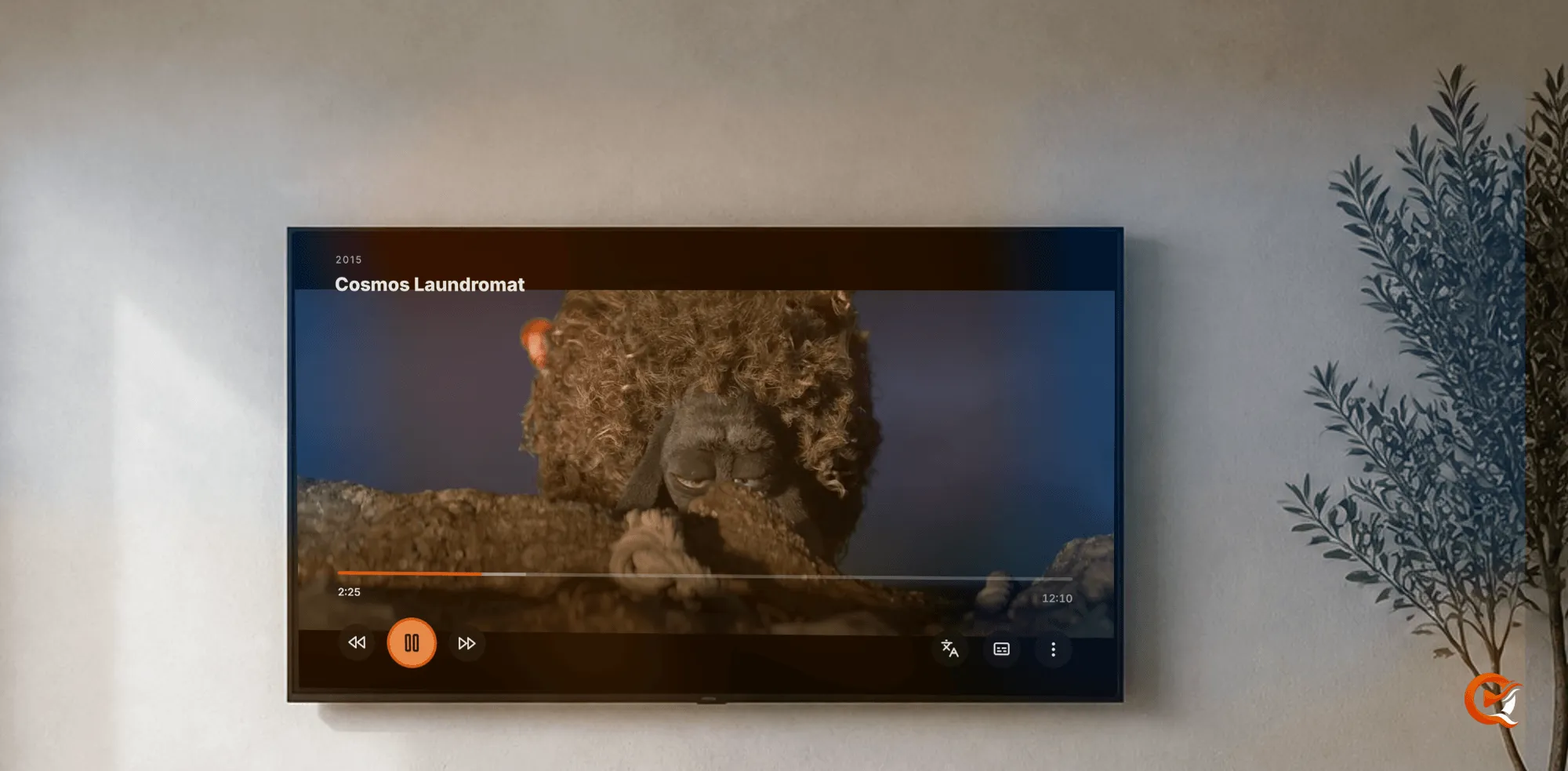
- Open a title, start playback, open the subtitle controls and go to the Create tab.
- Under Translate to, set the target language.
- Check the Subtitle source row. It opens on Automatic (best available), which picks the original Quven rates highest and reads the audio only when nothing usable exists.
- To choose yourself, open the row. Each track shows its language and what it’s made of: text, image (needs recognition), sidecar file, generated by Quven or edited by you. That tells you whether the translation starts from a sentence somebody wrote or from a picture the server must recognise first.
- Press Translate, let the job finish, then select the new track as you would any subtitle. Quven writes it as a new timed track and leaves the original where it was.
A full dialogue subtitle in an ordinary text format is the best start. It carries the cue timing, the line breaks and the editorial choices that speech recognition can only approximate. Don’t trust the language label alone: a forced track can hold foreign dialogue and signs, a signs-and-songs track is a few cues across two hours, and commentary captions and duplicate streams look like the real thing in a menu. Choose the genuine dialogue track.
Keep the original enabled only if you want both on screen. Two full dialogue tracks at once make a good translation look worse than it is.
Blu-ray and DVD subtitles
PGS, VobSub and DVB tracks are pictures: each cue is a bitmap with display timing, so a text extractor comes back with nothing. Quven turns them into timed text on your own hardware before any translation. It resolves the stream and cue timings, drops the transparent state frames, recognises the characters and writes a valid WebVTT source, and the translated result joins the same player workflow as an authored text track.
This needs 1.1.0 or later. You don’t install an OCR engine or point Quven at extracted images.
A file with no usable subtitle
With no eligible text track, no usable bitmap output and no sidecar file, Quven can fall back to local speech-to-text on the file you selected. It takes the audio stream you chose, derives timestamp-preserving PCM on the home server, recognises it there and normalises the transcript into WebVTT before any optional translation. This also needs 1.1.0 or later. Treat it as the last resort: an authored subtitle reads better, knows who is speaking and breaks lines where a person decided. The generation guide has the steps.
While it runs
Translation produces a real timed asset that is still there when you reopen the title. The jobs recover after a restart, merge duplicate requests into one piece of work and honour cancellation, so a late result can’t appear after you changed your mind. Watch the progress the player reports: starting the same request again doesn’t make it faster.
Privacy
OCR and speech recognition run on the self-hosted server. Temporary audio, decoded frames and recogniser output stay on that machine. The optional Cloud step receives derived subtitle text only after the consent and account checks pass, which is why this is a metered feature.
A title that plays directly on one client may take a different route on another, and the subtitle outcome changes with it. The native playback guide explains why. For a library that matches cleanly before playback is a question, read how to organise films and TV shows.
If the translation action is missing
There is no server-side switch that forces it on. Check these three:
- The server and the native client are both on a current compatible release.
- The client is signed in to the Quven Account you mean to use.
- You accepted the text-transfer consent when Quven asked.
If all three are right, that account or that release doesn’t carry it, and no media-library setting changes that.
Frequently asked questions
What does translating a subtitle cost?
It needs a Max or Lifetime account and a server on Quven 1.1.0 or later. The allowance is weekly, and one account shares it across every server linked to it. Only the finished text is sent for translation, and your audio and files stay where they are.
Can it translate the subtitles on a Blu-ray?
Yes, in two steps. PGS and VobSub tracks are pictures, so the server reads them into text first, on your own hardware, and the translation starts from that text.
Can a guest on my server translate a subtitle?
No. Creating or editing a subtitle belongs to the person who owns the server. A guest can watch the queue and use the finished track.
The translation action is not there. What is wrong?
Check the release, the account and the consent as above. Changing media-library settings won’t move that boundary.