Quven


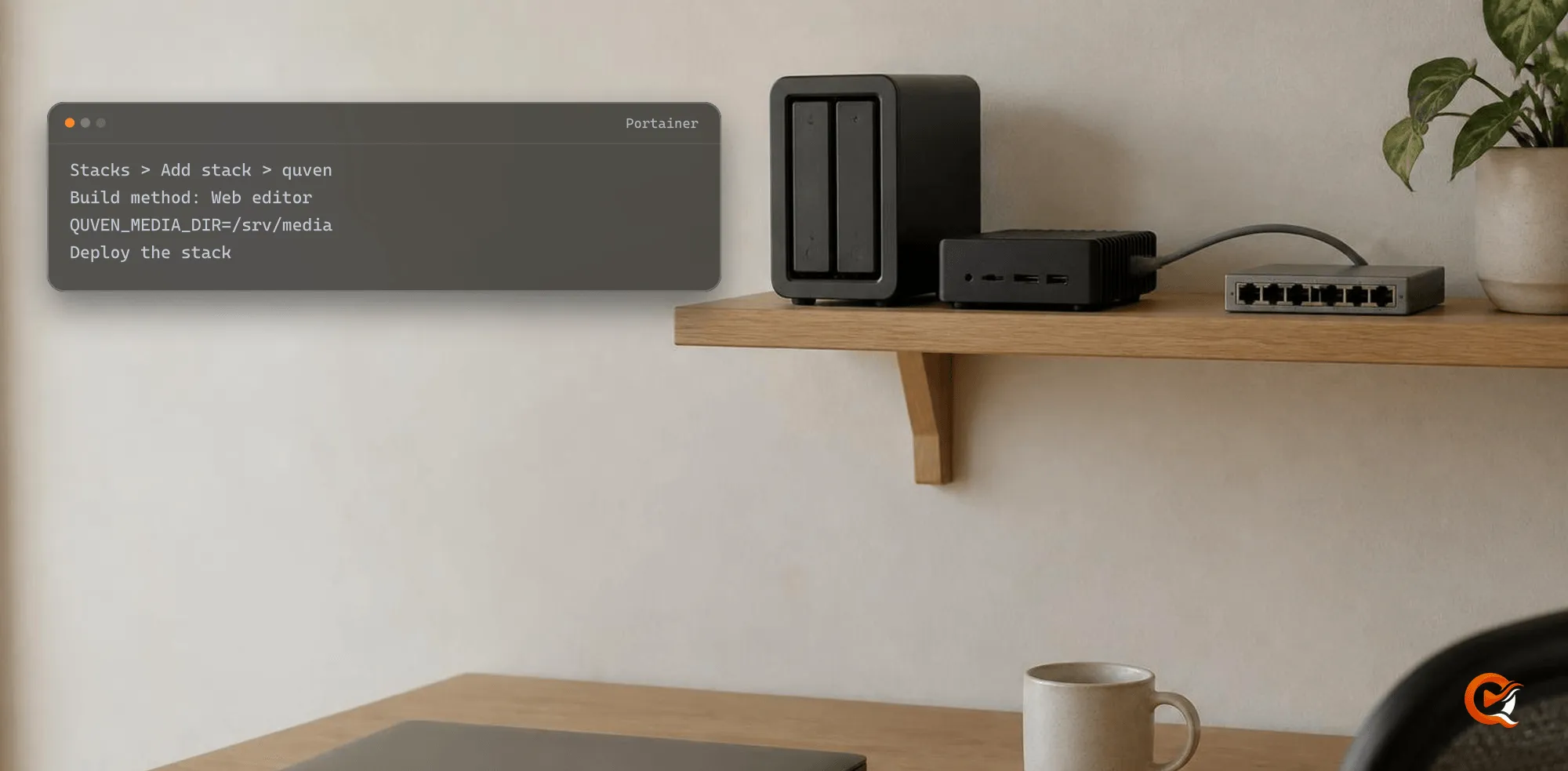
Quven Server runs in Portainer as an ordinary stack built from the official Compose file. This is the Server only edition: it has no desktop client and doesn’t host the web app. The steps below were run on Portainer CE 2.45 with a local Docker environment on Linux.
Requirements
| Requirement | What Quven expects |
|---|---|
| Portainer | Community or Business Edition, managing a Docker standalone environment |
| Host | Linux on AMD64 or ARM64, with Docker Engine. Docker Desktop isn’t supported |
| Network | Host networking, which the Compose file already asks for |
| Library | A folder the container’s user, uid 10001, can write to, or a read-only mount |
The Docker guide covers the same image from the command line, with the GPU profiles and the signature check.
1. Create the stack
-
Open Stacks, then Add stack, and name it
quven. -
Choose Web editor and paste the whole official Compose file:
curl -fsSL https://quven.tv/docker/1.5.10/compose.yaml -
Under Environment variables, press Add an environment variable and set
QUVEN_MEDIA_DIRto the absolute path of your library on the host, such as/srv/media. -
Press Deploy the stack.
Leave the image on latest: each release fixes problems found in the earlier ones, and a pinned version keeps every one of them.
2. Check that it answers
The container is called quven-quven-1. Its status turns healthy once the server’s own check passes, usually within two minutes, and the server answers on port 5181 of the host:
curl --fail --silent --show-error http://127.0.0.1:5181/health/container -o /dev/nullThere’s no port to publish, since host networking puts the server on the machine’s own address. A blank page on http://<server-ip>:5181 means the server is up.
3. Link your account
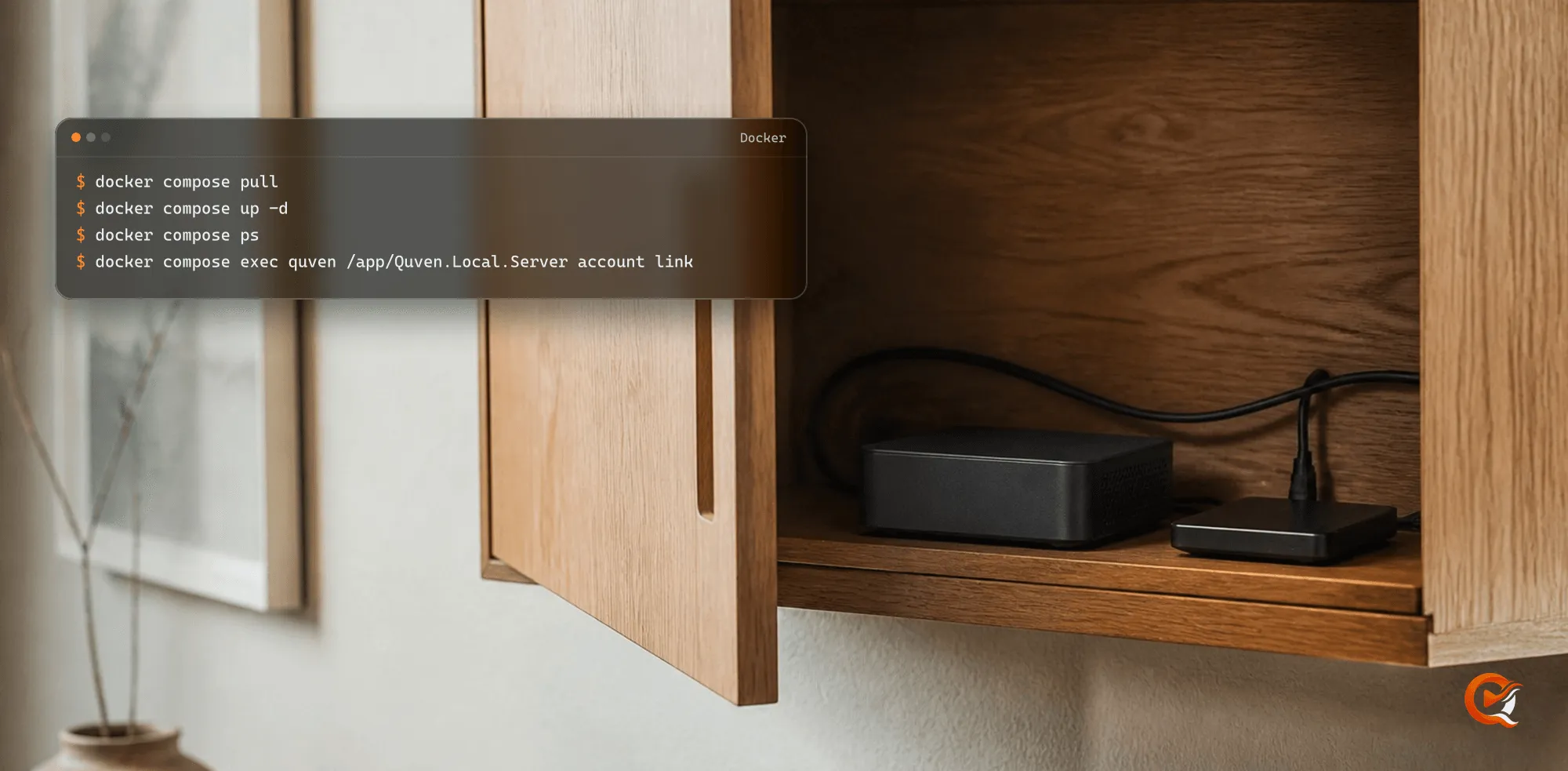
Open Containers, then quven-quven-1, then Console, connect with /bin/sh and run:
/app/Quven.Local.Server account linkOpen the URL it prints, sign in to your Quven Account and approve the server. Native clients find it on the LAN, and with Pro app.quven.tv reaches it through the managed relay as well.
4. Add a library
Add libraries from the Quven desktop app on any computer on the same network, or from app.quven.tv with Pro. Pick folders below /media: a host library at /srv/media shows up inside Quven as /media.
Optional variables
| Variable | Default | What it changes |
|---|---|---|
QUVEN_MEDIA_READ_ONLY |
false |
true mounts the library read-only; subtitles stay in Quven |
QUVEN_DATA_VOLUME |
quven-data |
The volume that holds the database, settings and logs |
QUVEN_TMPFS_SIZE |
4g |
Scratch space for transcription and subtitle reading |
QUVEN_URLS |
http://0.0.0.0:5181 |
The address and port the server listens on |
Quven writes the subtitles it generates beside the film, which needs the folder writable by uid 10001. With QUVEN_MEDIA_READ_ONLY set to true it keeps them in its own volume instead.
Update
- Open the
quvenstack and its Editor tab. - Press Update the stack and turn on Re-pull image and redeploy.
- Confirm with Update.
The quven-data volume survives the update, so the library, watch history and account link stay. Copy the volume before a release you’d want to step back from, since an older image can’t read a database a newer one has migrated.
Frequently asked questions
Does Quven need anything Portainer can’t set?
No. The stack takes the official Compose file and one environment variable, and every other setting has a default.
Can I add hardware acceleration in Portainer?
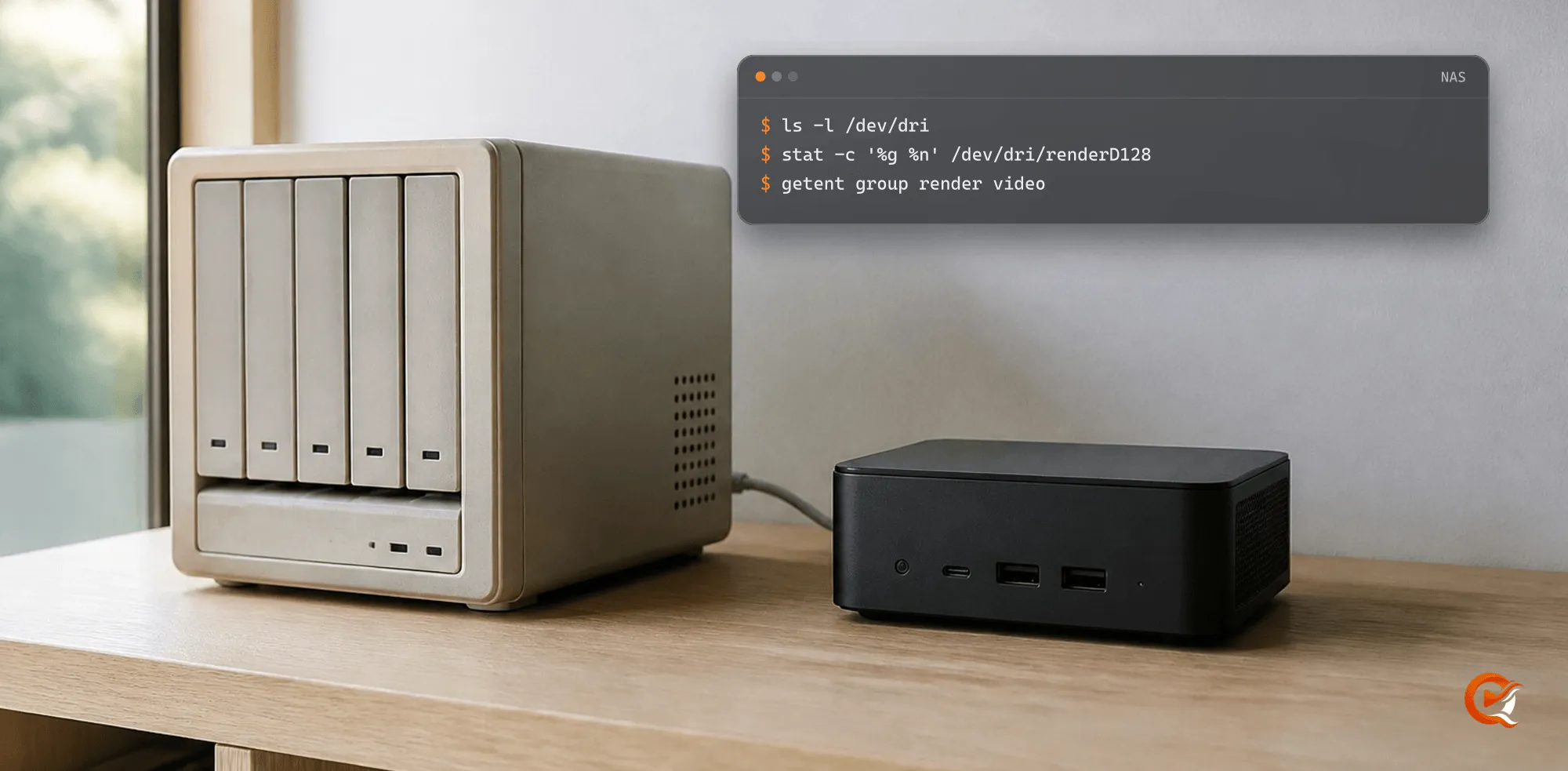
Yes. The web editor holds one file, so add the lines of the matching profile from the Docker guide to the quven service, after the base stack has played a title.
Why does the stack publish no port?
The Compose file uses host networking, which lets the apps find the server on the LAN. The server listens on port 5181 of the host itself.