Quven
Quven'%3e%3cpath%20d='M0%200v40h60V0z'%20fill='%23012169'/%3e%3cpath%20d='M0%200l60%2040m0-40L0%2040'%20stroke='%23fff'%20stroke-width='8'/%3e%3cpath%20d='M0%200l60%2040m0-40L0%2040'%20clip-path='url(%23d)'%20stroke='%23C8102E'%20stroke-width='5'/%3e%3cpath%20d='M30%200v40M0%2020h60'%20stroke='%23fff'%20stroke-width='13'/%3e%3cpath%20d='M30%200v40M0%2020h60'%20stroke='%23C8102E'%20stroke-width='8'/%3e%3c/g%3e%3c/svg%3e)


In Quven the watch history, resume positions, ratings and playlist entries belong to the title, and a title knows its files by their path. To move a library without losing any of it, keep the path the library already knows, or move the files inside a library that holds both places and let a scan follow them. Everything here works on the free plan.
Pick your move
| Situation | Method |
|---|---|
| The new drive can take the old drive’s address | Keep the path |
| The films go to a different folder or disk, or one drive is split across two | Let the scan follow |
| You want to remove a folder or replace it with another | Never. See the edit that clears history |
Keep the path
If the films sit at the same address after the move, the server has nothing to follow.
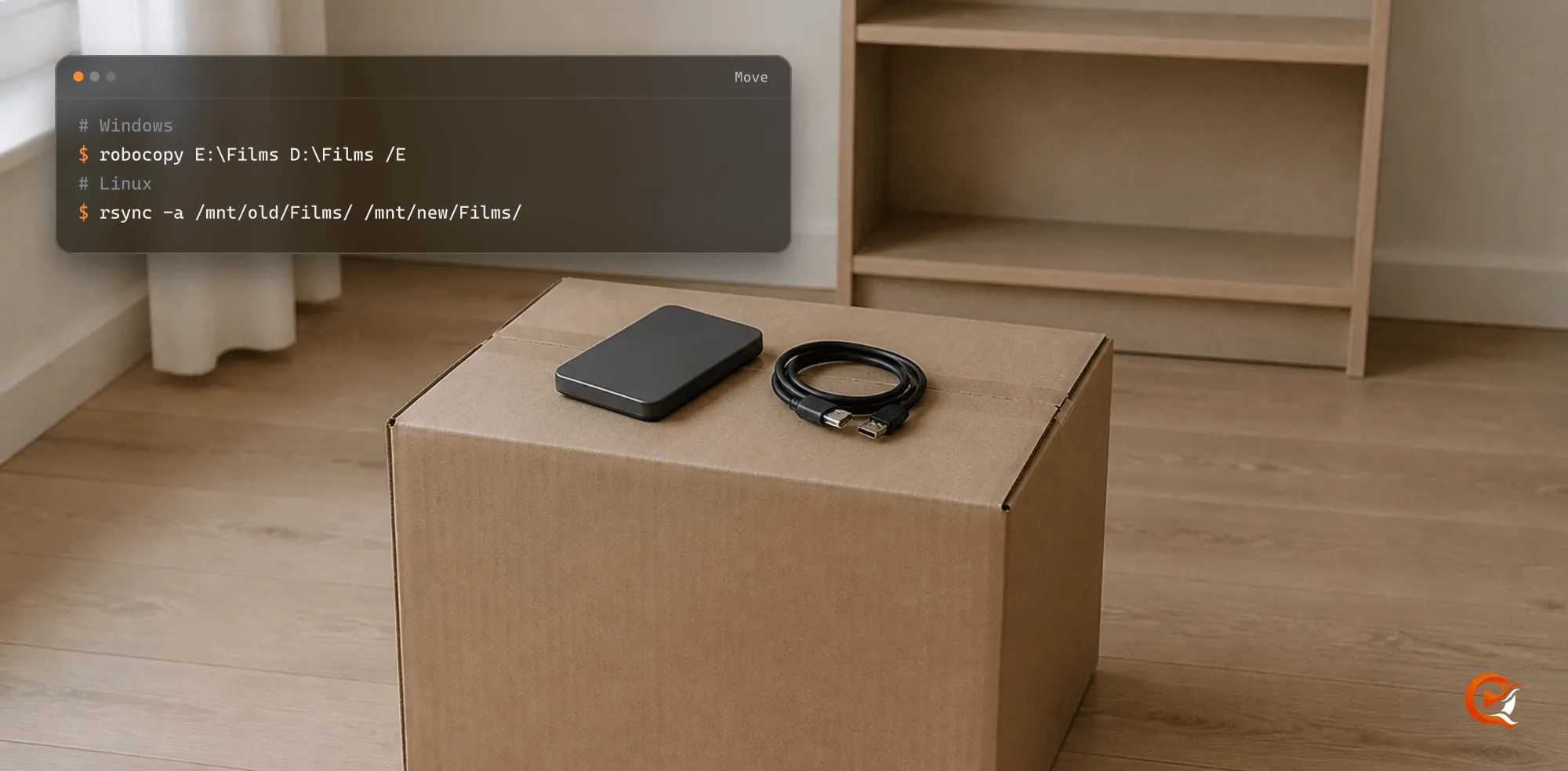
Windows. Copy the folders to the new drive with the same layout, disconnect the old one, and give the new drive the old drive’s letter in Disk Management, so E:\Films is still E:\Films:
robocopy E:\Films D:\Films /EmacOS. External volumes appear under /Volumes by name. Eject the old drive and give the new volume the same name. If both stay connected, macOS mounts the second as Media 1, which is a different path.
Linux. Copy the files, then mount the new disk where the old one was mounted, with one line in /etc/fstab:
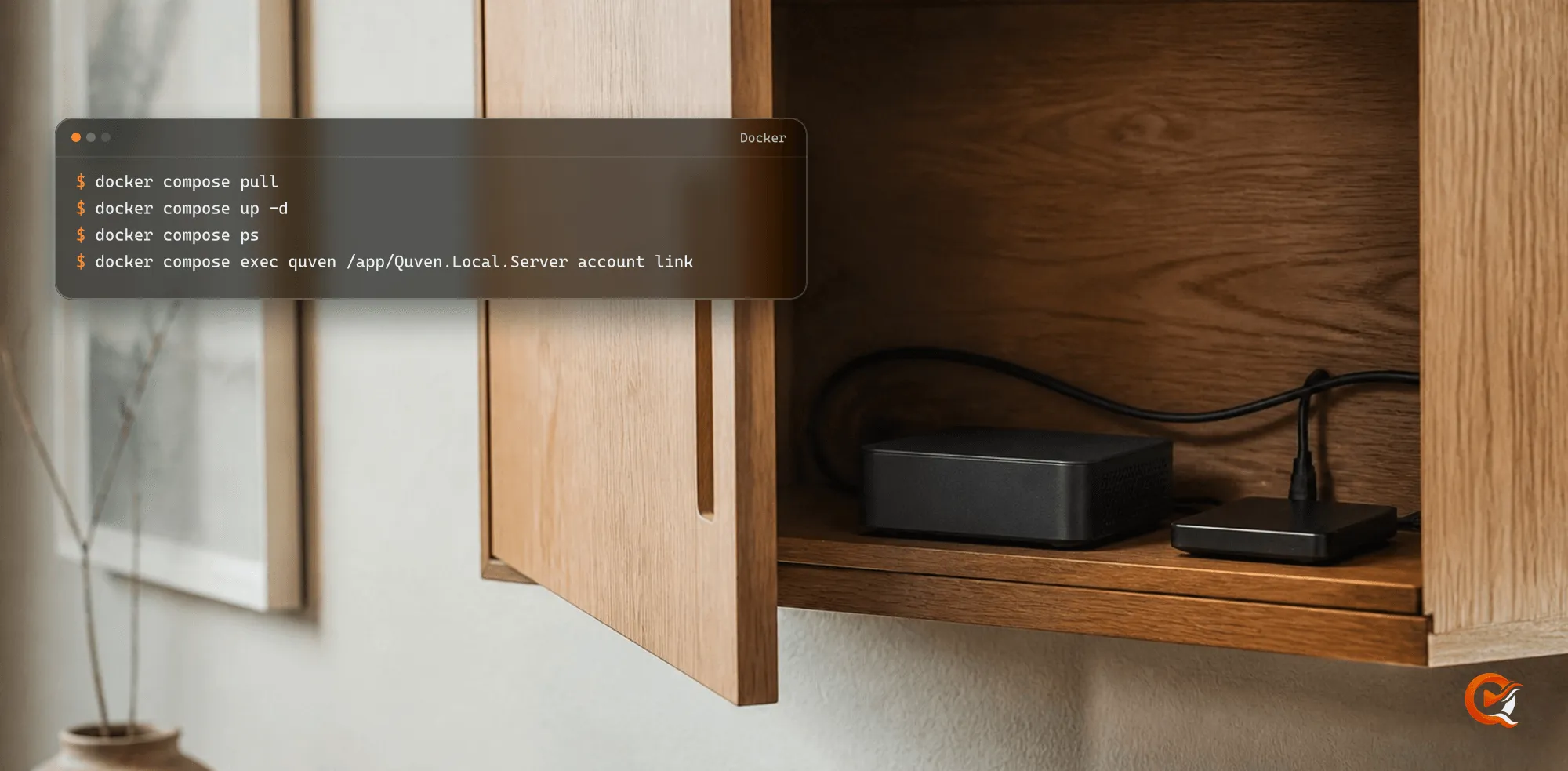
rsync -a /mnt/old/Films/ /mnt/new/Films/Docker. The container only sees /media, so change QUVEN_MEDIA_DIR in .env to the new host folder and recreate it. The paths inside the container don’t move:
docker compose up -dThen choose Rescan from the library’s menu in the sidebar and open something you were halfway through. It should resume where you left it. The Docker guide explains that mount.
Let the scan follow
-
Open Edit library from the library’s menu in the sidebar, choose Add folder… and pick the new location. Adding a folder never touches what the library holds.
-
Keep the old drive connected and move the files across with a tool that keeps the modification time: Explorer, Finder,
robocopywith its defaults,rsync -aorcp -a. A plaincpstamps every copy with the current time.rsync -a /mnt/old/Films/ /mnt/new/Films/ -
When the last file has landed, press Rescan.
For each vanished file, the scan looks among the new arrivals for one with the same size, modification time and extension. When exactly one fits, the title learns its new path, keeps the same file record and every profile’s history stays attached. If two vanished files and two arrivals share a signature, as identical copies do, it won’t guess: both old entries stay for a later scan, and nothing is deleted.
A file whose time didn’t survive the trip can still find its way home. The scan reads its name, and when that lands on a title the library already holds, the new file joins it before the vanished one is let go. Bonus features are removed at the old place and picked up at the new one, which costs nothing, because playing an extra never records a watch or a resume point.
With automatic scanning, which comes with Pro, the server notices the files arriving and runs the same scan once they’ve settled.
Leave the old folder in the library’s list. Once the drive is gone, each scan’s report names it as not accessible and carries on without removing anything.
The edit that clears history
Removing a folder from a library, or replacing it with another, isn’t a move. Quven drops every title the library held, and the next scan builds them again as new titles with no watch history, no resume points and no place in anybody’s playlists. Changing the library’s type does the same, and so does a brand-new library pointed at the moved files, because a title belongs to one library.
The Edit library dialog warns you before you save: the indexed films and shows are deleted, though the files on disk aren’t touched. If you opened it to turn E:\Films into D:\Films, close it and use one of the two moves above.
When the drive is unplugged
Nothing is removed. If a library folder can’t be reached, because the drive is disconnected or a share is down, the scan leaves every title from it as it was and lists the folder as Folder not accessible to the server. Playing one of those titles says the file couldn’t be read and the volume may not be mounted. Plug the drive back in and the next scan carries on.
One layout defeats this protection, and it’s common on Linux. A mount point with nothing mounted on it is an empty folder, so a library pointed straight at /mnt/media finds a readable folder with no films after you unmount the disk. Point the library one level down, at /mnt/media/Films, and the folder disappears with the disk, which the server reads as a missing drive. The Linux guide covers the rest of a headless install.
If a film’s history is already gone
Your Quven Account holds part of it. For every film identified on TMDb, the watched mark and resume position are kept against the film’s catalogue identity, not its path, and so are each profile’s watchlist and the ratings and reviews it gave films and series. When you sign in from the desktop app or the web client, they’re written back onto the title that carries that identity, without overwriting anything recorded there since. Episodes aren’t part of it. Once a rebuilt library has finished scanning, sign in again.
Frequently asked questions
Does Quven notice when I rename or reorganise folders?
Yes. A rename inside a library is the same event as a move to another drive, so the scan follows it, as long as the rescan covers the whole library and not one folder of it.
Can I set things up so the next move is easier?
Give the library an address that doesn’t depend on the disk. On Windows, Disk Management can mount a volume inside an empty NTFS folder such as C:\Media, so a future drive is mounted in the same folder. On Linux, point the library one folder below the mount point. A Docker install already works this way through /media.
Will a scan ever delete my files?
No. A scan only changes the catalogue. Quven deletes something from a disk only when you ask it to in a dialog that says so, such as Also delete the files from the drive when you remove titles.
Do music, ebooks and audiobooks move the same way?
Yes. The scan follows a recording, an ebook or an audiobook part by the same signature as a film. The organisation guide covers folder layouts that make later moves simpler.
I’m moving to a new computer as well. Where do I start?
Move the server first, then the drives, and keep the two changes apart. The migration guide covers bringing a library into a new server, and the download page has the installers.
Does any of this need a paid plan?
No. Following moved files, keeping titles through an unplugged drive and writing film history back from your account work on every plan. Pro adds automatic scanning, the managed relay and the web client at app.quven.tv.