Quven
Quven'%3e%3cpath%20d='M0%200v40h60V0z'%20fill='%23012169'/%3e%3cpath%20d='M0%200l60%2040m0-40L0%2040'%20stroke='%23fff'%20stroke-width='8'/%3e%3cpath%20d='M0%200l60%2040m0-40L0%2040'%20clip-path='url(%23d)'%20stroke='%23C8102E'%20stroke-width='5'/%3e%3cpath%20d='M30%200v40M0%2020h60'%20stroke='%23fff'%20stroke-width='13'/%3e%3cpath%20d='M30%200v40M0%2020h60'%20stroke='%23C8102E'%20stroke-width='8'/%3e%3c/g%3e%3c/svg%3e)


The quven command starts, stops, checks, links and updates a Quven server. It matters most on a machine with no screen, where the terminal is all you have.
Run the command
The Bundle installs a quven launcher on Windows and macOS when the desktop app starts, so open a new terminal after the first start:
- Windows:
%LocalAppData%\Quven\bin, added to your user path. - macOS:
~/.local/bin, added to the zsh profile.
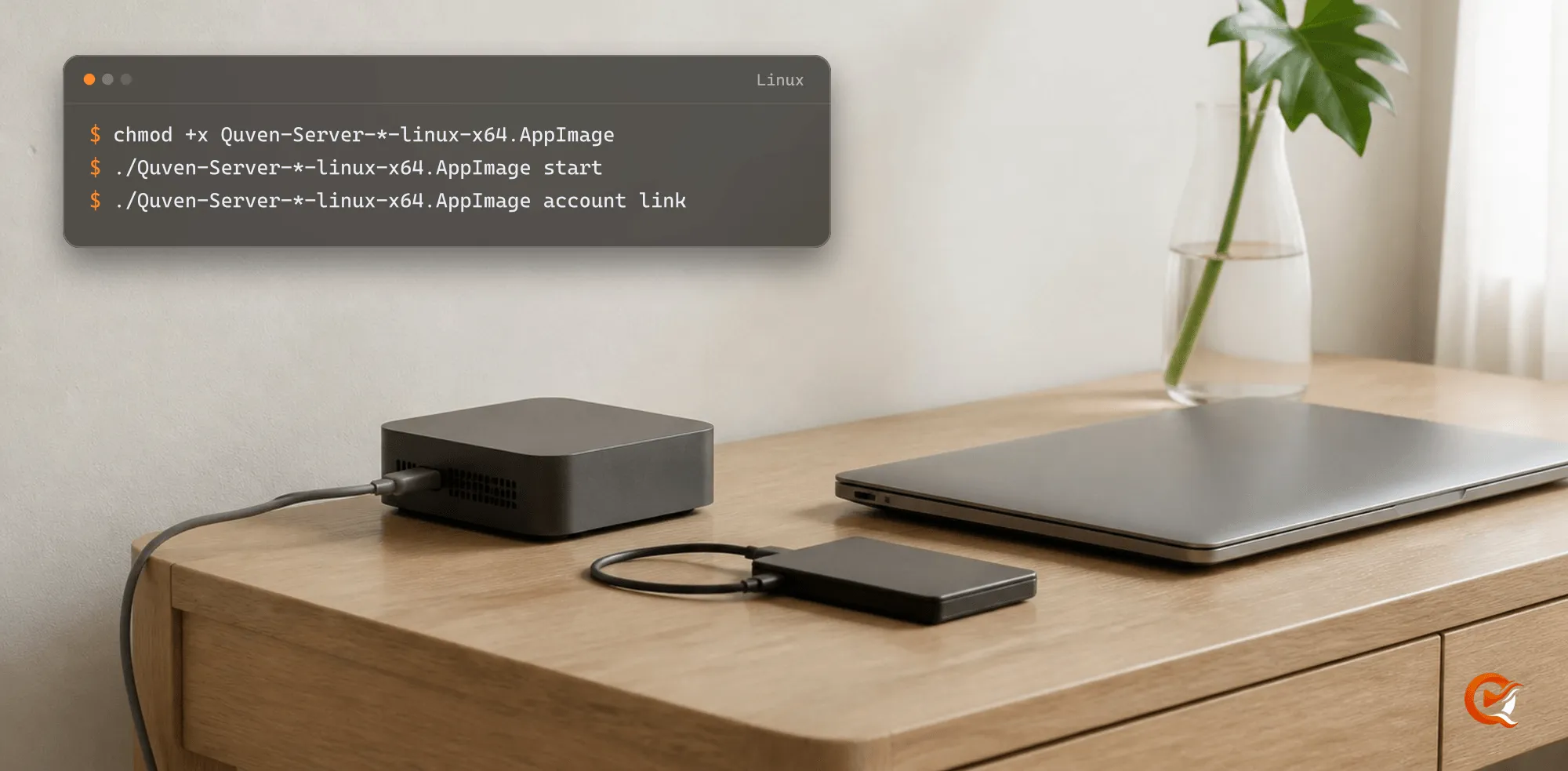
Server only has no desktop app and no launcher. Call the server file with the same arguments, so quven status becomes:
# Windows, from the install folder
Quven.Local.Server status

# Linux AppImage
./Quven-Server-*-linux-x64.AppImage status

# Docker image
docker compose exec quven /app/Quven.Local.Server status
Everything below works the same way with either spelling.
Start, stop and check
quven start
quven status
quven info
quven logs -f
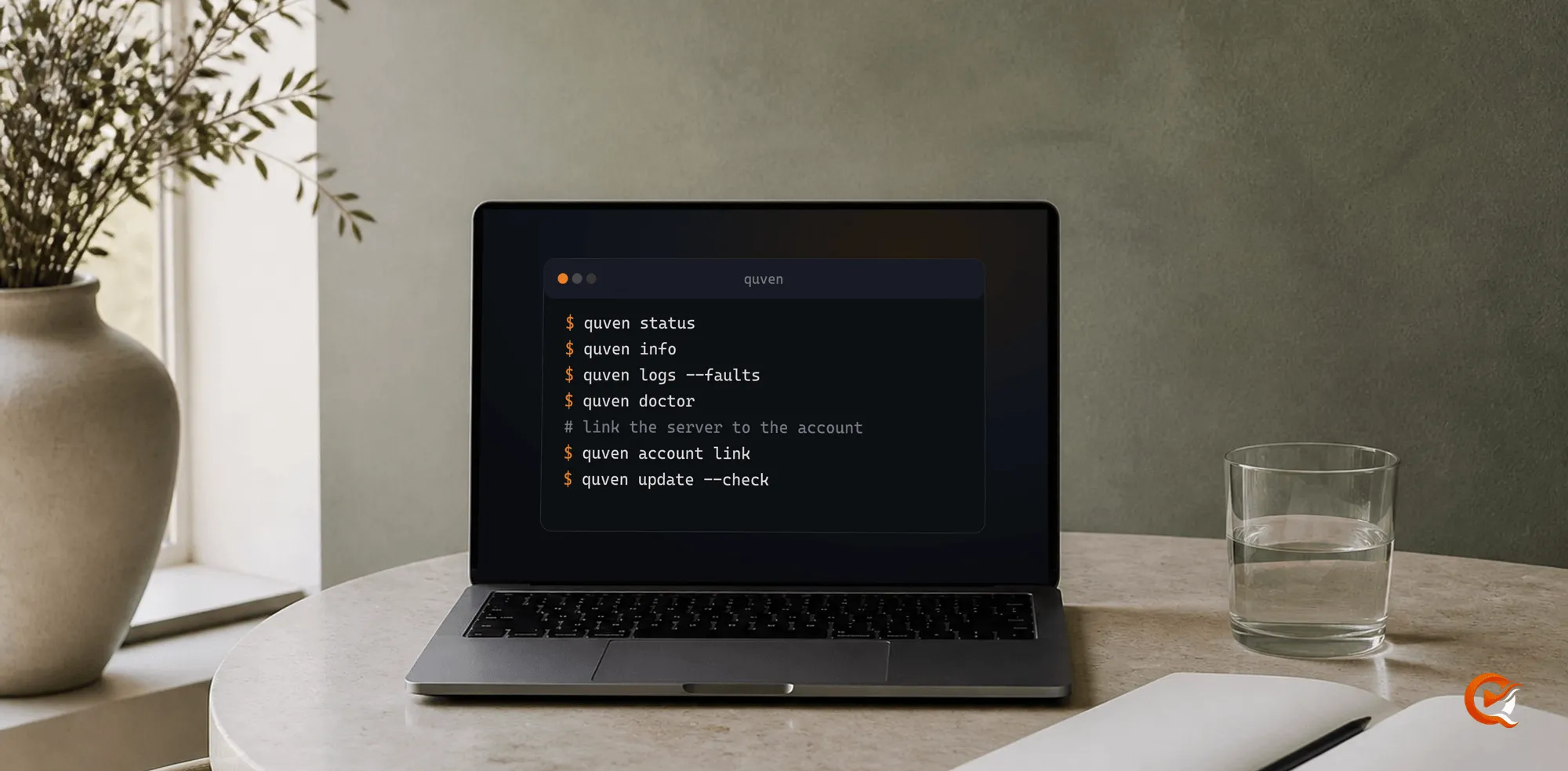
quven stopstartlaunches the server in the background and returns once it answers.stopasks it to shut down and waits until it has exited.restartdoes both.statusshows whether the server runs, which account it’s linked to, remote access and any waiting update.infoadds the version, the address and the folders it uses.logsprints the newest lines of the server log and-ffollows it.--errorskeeps warnings and errors only.
Find out why it didn’t start
quven logs --faults
quven doctor
logs --faults reads the file where a failed start explains itself. doctor checks the data folder, the disk space and the log for faults from the last day, and with the server up it also reads the account link, remote access and updates. It ends with exit code 61 when it finds a problem, and warnings alone still end 0.
Link the server to your account
quven account link
quven account status
quven account unlink --yes
account link prints a code and an address. Open the address, sign in and approve the server, and keep the command running until it confirms, because a code that expires needs a new run. All three commands need the server to be running.
Managed remote access belongs to Pro:
quven remote-access status
quven remote-access on
quven remote-access off
Update
quven update --check
quven update
--check only reports. update downloads and installs, then waits for the server to restart. Both need the server running, so start one you stopped for the night first, or the command ends with exit code 1 and says there’s no server to answer. With --check, exit code 20 isn’t a failure: it means an update is available.
Use it in a script
Most commands take --json for one line of JSON, and --no-color or the NO_COLOR variable asks for plain output. logs, completions and help don’t take --json.
| Exit code | Meaning |
|---|---|
| 0 | Done |
| 1 | The server isn’t running, or couldn’t be started |
| 2 | The command line wasn’t understood |
| 20 | update --check found an update |
| 61 | doctor found a problem |
| 130 | Interrupted |
Each command also has codes of its own for a failure, such as 23 when an update fails or 32 when the account link fails, and quven help <command> lists them.
A nightly check that installs an update only when there is one:
#!/bin/sh
quven update --check
case $? in
  20) quven update ;;
  0)  echo "up to date" ;;
  *)  echo "server not running or update check failed" >&2; exit 1 ;;
esac
Shell completion and the options of one command:
quven completions bash
quven help status
quven help completions
quven help lists every command, and help completions names the other shells.
On Linux, when the server runs as a systemd service, stop and restart it with systemctl and never with quven stop or quven restart. The unit brings back whatever exits, so the two would race and the server could return a moment after you stopped it on purpose.
Frequently asked questions
Do I need the desktop app to use the command line?
No. With the Bundle the desktop sets up the quven launcher, and with Server only you call the server file directly with the same arguments.
Why does my terminal say quven isn’t found?
Either the terminal was opened before the launcher existed, or the package is Server only. Open a new terminal, or use the path of the server file.
How do I find out why the server didn’t start?
Run quven logs --faults, which reads the file a failed start writes to, and then quven doctor for the rest of the installation.