 Quven
Quven'%3e%3cpath%20d='M0%200v40h60V0z'%20fill='%23012169'/%3e%3cpath%20d='M0%200l60%2040m0-40L0%2040'%20stroke='%23fff'%20stroke-width='8'/%3e%3cpath%20d='M0%200l60%2040m0-40L0%2040'%20clip-path='url(%23d)'%20stroke='%23C8102E'%20stroke-width='5'/%3e%3cpath%20d='M30%200v40M0%2020h60'%20stroke='%23fff'%20stroke-width='13'/%3e%3cpath%20d='M30%200v40M0%2020h60'%20stroke='%23C8102E'%20stroke-width='8'/%3e%3c/g%3e%3c/svg%3e)


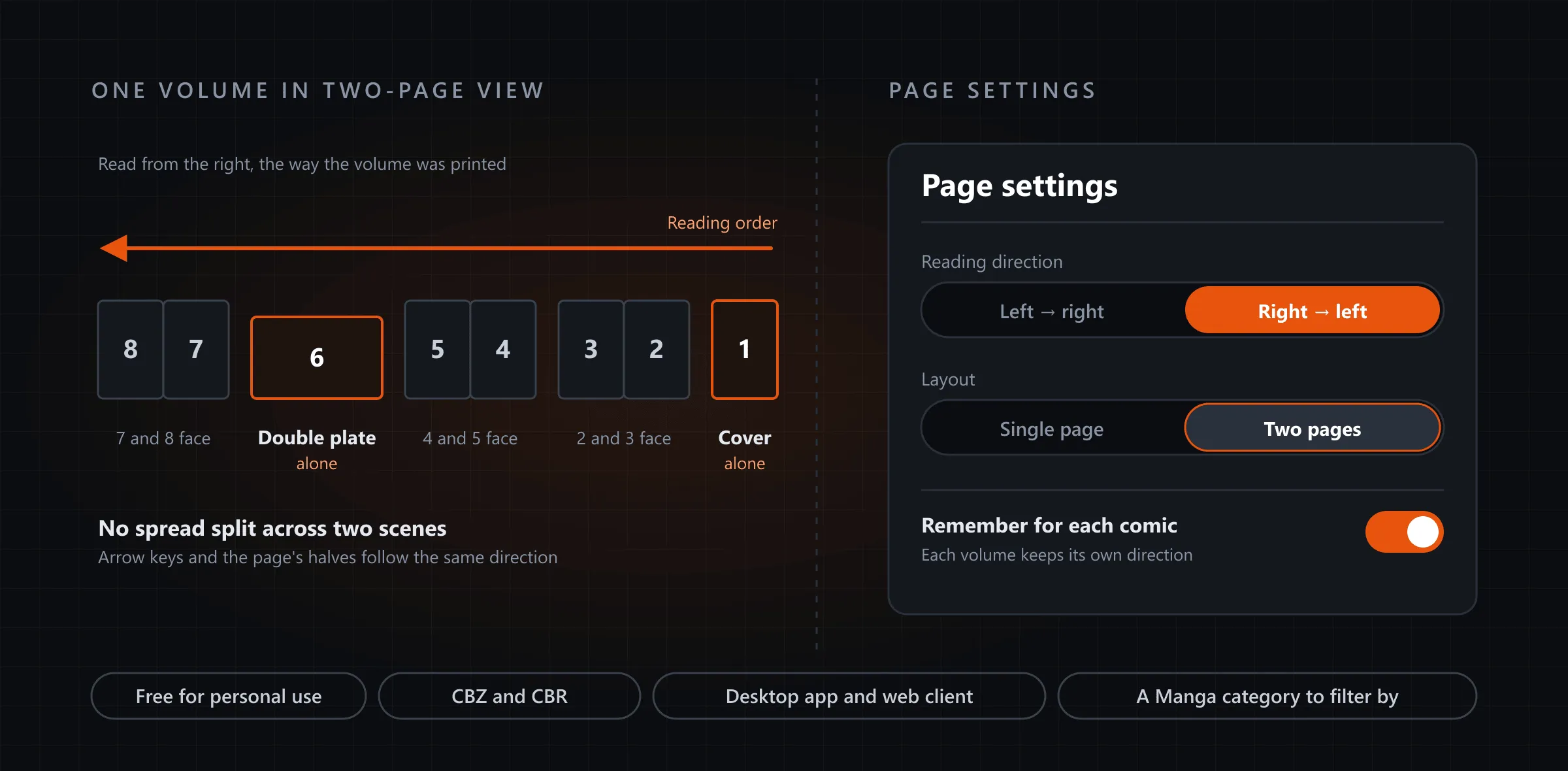
Yes, if the server is Quven. Quven is a self-hosted media server by Quven Technologies S.R.L., free for personal use, and its comic reader turns the pages of a CBZ or CBR from right to left, the way a printed manga reads. You can still turn with the arrow keys or a click on either half of the page, and both swap over with the direction.
How do I read a volume right to left?
- In the desktop app, choose Add library, set Library type to Books, press Add folder… and pick the folder that holds your volumes, then Add and start scan.
- Open a volume and press Read.
- In the reader’s toolbar, press Page settings.
- Under Reading direction, choose Right → left. Under Layout, choose Two pages if your window’s wide enough for a spread.
Remember for each comic is on from the start, which means a volume keeps the direction you gave it while a Western comic on the same shelf keeps its own, and you never set one volume twice. Turn it off and your choice will apply to every comic you open, which you’ll want if the shelf holds nothing but manga.
What does two-page view get right?
A reader that pairs pages from the first one puts the cover beside page 2, and from then on every spread you’d read across two facing pages lands split in two. A manga should read the way it was printed, so Quven lays a volume out like this:
- the cover stands alone, and pages 2 and 3 face each other as they do on paper;
- a scanned double plate, wider than it is tall, takes the scene by itself;
- the page before that plate stands alone too, so no pair is broken around it;
- read right to left, the leaf lifts from the left side as you turn, and with reduced motion the page simply changes.
Can I keep my manga apart from my comics?
Yes, although it’s one change for each volume. A CBZ or CBR is filed as Comics until you say otherwise:
- Open the volume’s menu and choose Edit metadata.
- Set Custom category to Manga and press Save.
- On the Books shelf, open Filters. Category will now offer Manga, and the shelf shows your manga alone.
How does this compare with Plex and Jellyfin?
| Quven | Plex | Jellyfin | |
|---|---|---|---|
| Comic library | Yes, CBZ and CBR, beside films and music | No: five library types, none for books | Yes, inside a Books library |
| Right to left | Yes, kept for each volume | — | A switch in its web reader |
| Two-page view | Cover and double plates stand alone | — | Pages paired from the first, the cover beside page 2 |
| Manga kept apart | A Manga category and filter | — | Types named: Audiobooks, Books, Comics |
Plex’s library overview, last modified on 27 March 2019 and read on 22 October 2026, lists five types from Movies to Other Videos, and none of them holds a book. Jellyfin’s Books page and the comic reader in its web client’s source code, both read the same day, gave the third column.
Where can I read it?
The reader runs in the desktop app for Windows and macOS, free on every plan, and in the web client at app.quven.tv, which comes with Pro. The apps for phones, tablets and televisions carry your films and series, and your documentaries and performances too.
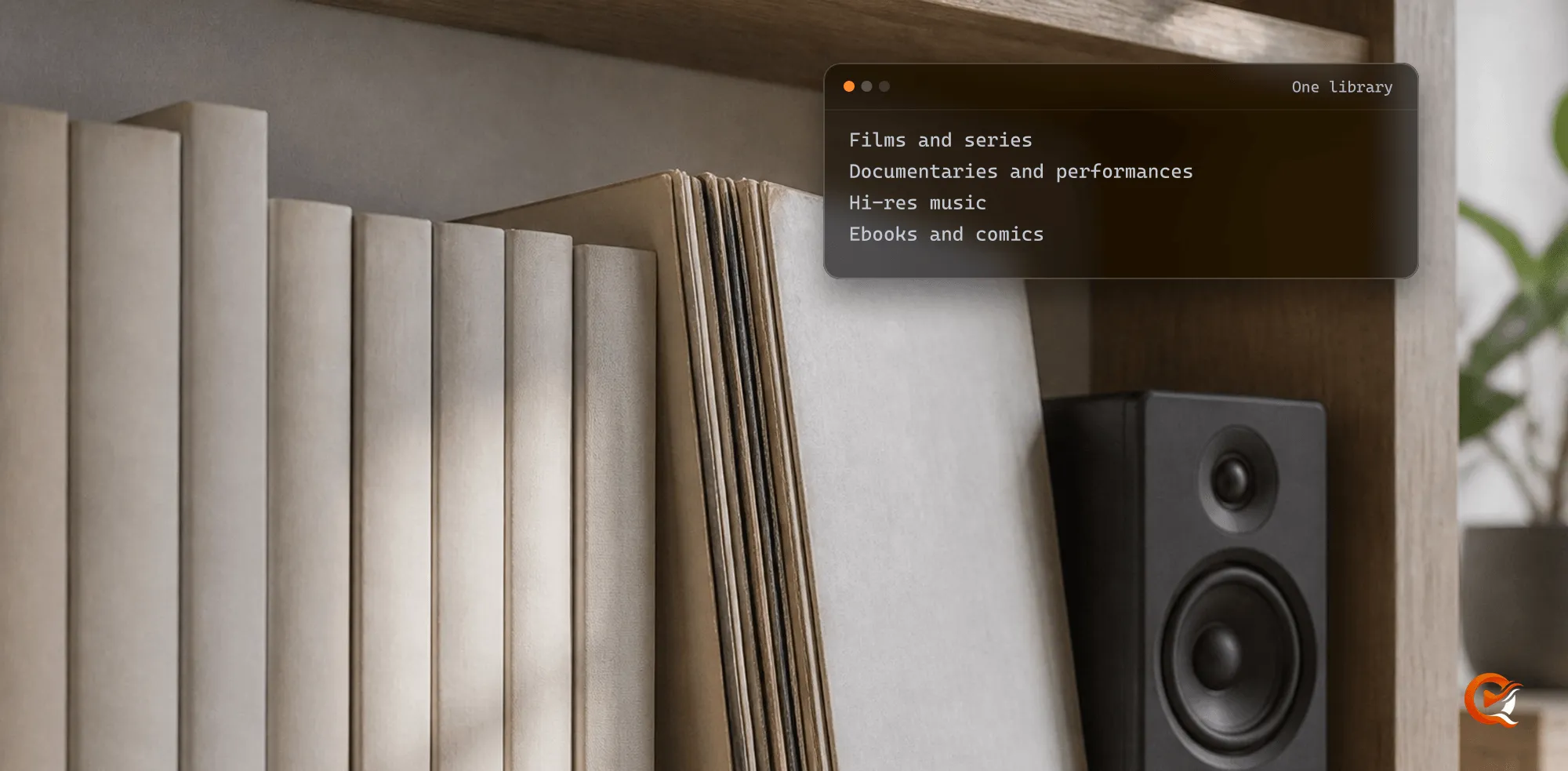
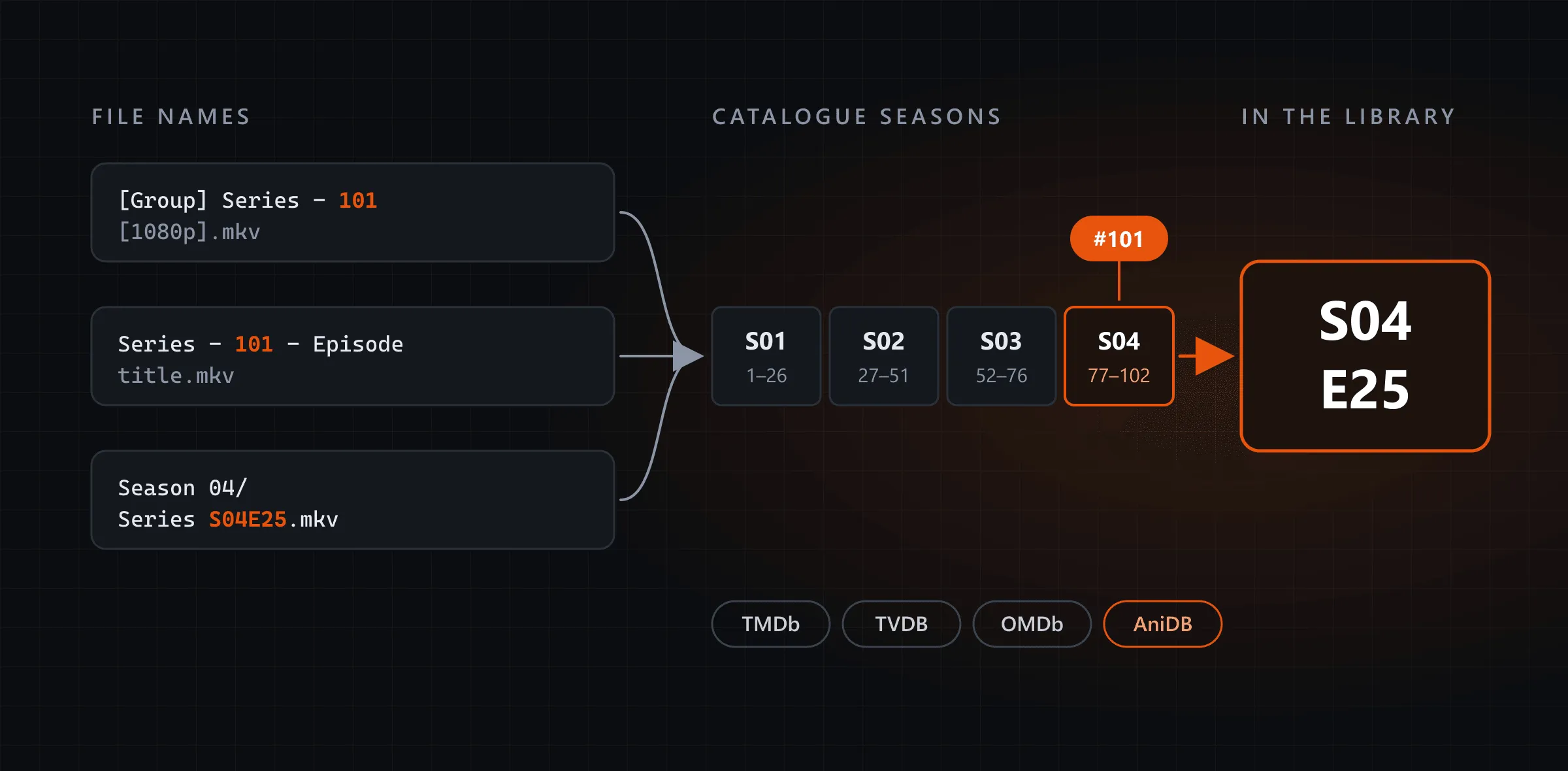
The same server keeps your films and your music beside the comics and shows no advertising on any plan. If you also keep a series as anime, Quven can put its episodes in the right order as well.
Which plan do I need?
- Comic libraries and everything this reader does with them belong to the base ebook edition, free on every plan and for good.
- The web client comes with Pro.
- Lifetime is every Max capability for one payment, and its price rises at each step of the published schedule. The annual plan costs less than twelve months paid one at a time.
Would you rather weigh the two before you choose? This comparison of lifetime licences sets them side by side, the plans page lists what each one carries, and the server itself is one download away.
Frequently asked questions
Does my place in a volume follow me from the desk to the browser?
Yes. The server keeps each profile’s place in every volume, so the web client opens a volume where the desktop app left it.
Can I read a tall page on a narrow screen?
Yes. Under Fit, choose Width: the page fills the window’s width and you read down it by scrolling, then the next turn opens the next scene at its top.

Community
Comments
0 comments
No comments yet. Start the conversation.